Guest Author | January 27, 2026
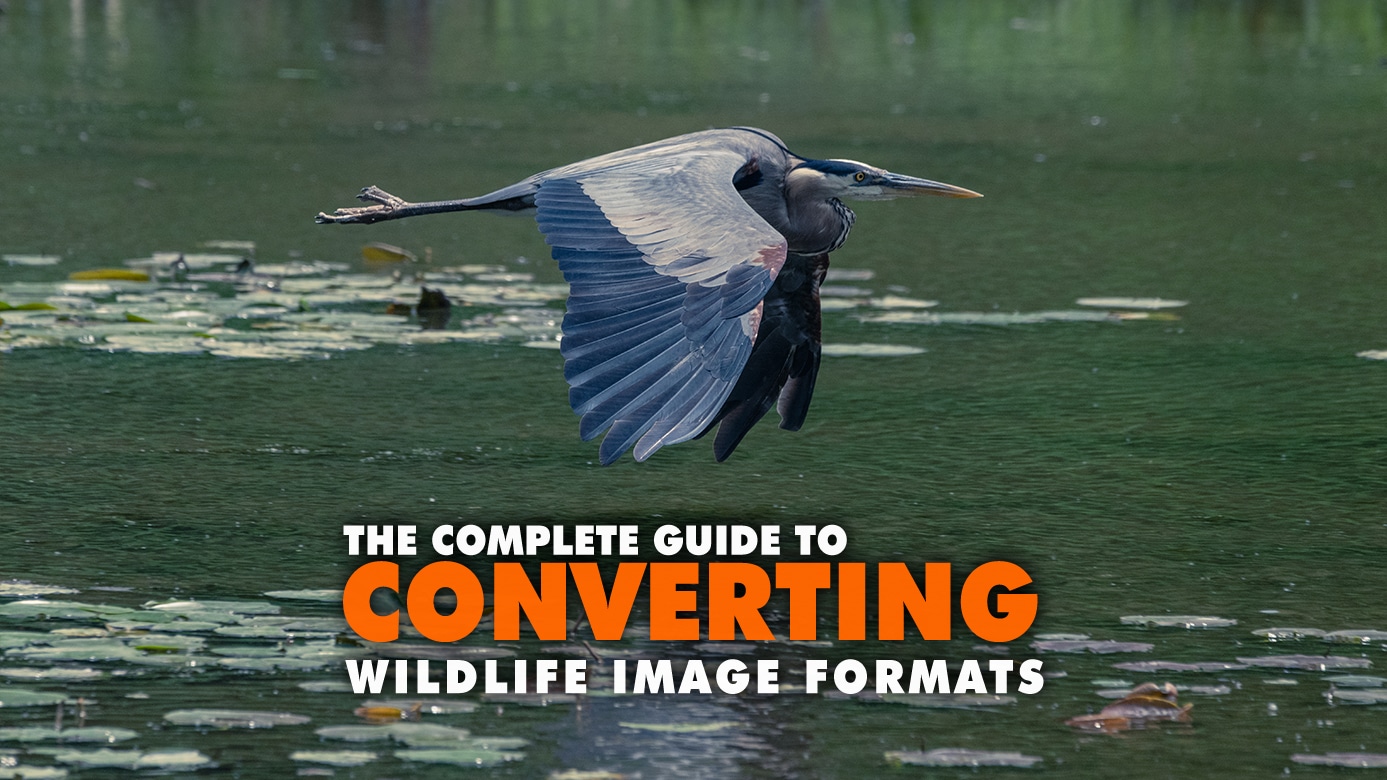

Complete Guide to Converting Wildlife Image Formats
If you work with wildlife images, understanding image format conversion is something you will run into sooner or later. It does not matter if you are a photographer, researcher, content creator, or simply someone who enjoys nature photography. You might need to upload a photo file to a website, send it to a client, archive it, or share it online. In these moments, choosing the right file format suddenly becomes more important than expected.
Converting Images
Converting images is not just about changing extensions or renaming a format photo. Different file types affect image quality, file size, loading speed, and compatibility across devices and platforms. Choosing the wrong image format can make even the best wildlife image look blurry or unusable. To simplify things, let’s walk through the main formats, when conversion makes sense, and how to do it properly without losing quality.

Ways to Convert Wildlife Image Formats
There are several ways to convert images depending on how often you work with them. Whether you use a file converter, photo converter, or advanced software, the goal is always the same: preserve quality while changing the image format.
Online Converters
An online image converter is useful for quick, one-time tasks. You upload a photo, select a new format, and download the result.
Pros:
- No installation required
- Fast and simple
Cons:
- File size limits
- Privacy concerns
- Limited quality control
Built-In System Tools
Operating systems include basic conversion features that can act as a simple image converter.
Pros:
- Free
- Already installed
Cons:
- No batch processing
- Limited settings
Dedicated Software (Recommended)
For regular work, dedicated software offers the most control. A professional photo converter allows precise format selection and quality adjustment. For example, Movavi’s image converter lets you:
- Convert multiple images at once
- Choose output format and quality
- Preserve fine wildlife details
- Save time with batch processing
This is ideal for managing large wildlife photo libraries.
Common Image Formats
Before converting any wildlife image, it is important to understand the strengths and limitations of different file types. Each file format is designed for a specific purpose, and using the right one can dramatically improve results. Wildlife images benefit especially from formats that preserve fine detail and natural colors. These basics are part of essential photography fundamentals.
JPEG (JPG)
JPEG is one of the most widely used image format options in photography. If you have ever wondered what is JPG format, it is a compressed format designed to balance quality and size. A JPEG file uses lossy compression, which reduces file size by removing some image data
Best for:
- Wildlife photography for web and social media
- Sharing images online
- Best for social media use
Pros:
- Small file size
- Widely supported
- Good balance between quality and size
Cons:
- Quality degrades with repeated saves
- Not ideal for transparency
PNG
PNG is often chosen when image quality matters more than file size. It uses lossless compression, making it one of the options for maintaining the best quality image format when transparency is required.
Best for:
- Images with text or graphics
- Photos requiring transparency
- High-quality visuals
Pros:
- No quality loss
- Supports transparency
Cons:
- Larger files compared to JPEG
- Less practical for large wildlife collections
GIF
GIF is mostly known for animations. While it can store static images, its limitations make it unsuitable for most wildlife photography.
Best for:
- Simple animations
- Low-detail visuals
Pros:
- Supports animation
- Small size for simple graphics
Cons:
- Limited to 256 colors
- Not suitable for wildlife photos
WebP
WebP is a modern image format optimized for the web. It offers strong compression while keeping good visual quality, making it a popular choice for online platforms.
Best for:
- Websites and online galleries
- Fast-loading content
Pros:
- Smaller files than JPEG and PNG
- Good quality at lower sizes
Cons:
- Not supported by some older software
SVG
SVG works differently from photo-based formats. It is a vector file format, meaning it does not use pixels.
Best for:
- Icons, logos, illustrations
Pros:
- Scales without quality loss
Cons:
- Not suitable for wildlife photography
When and Why to Convert Wildlife Images
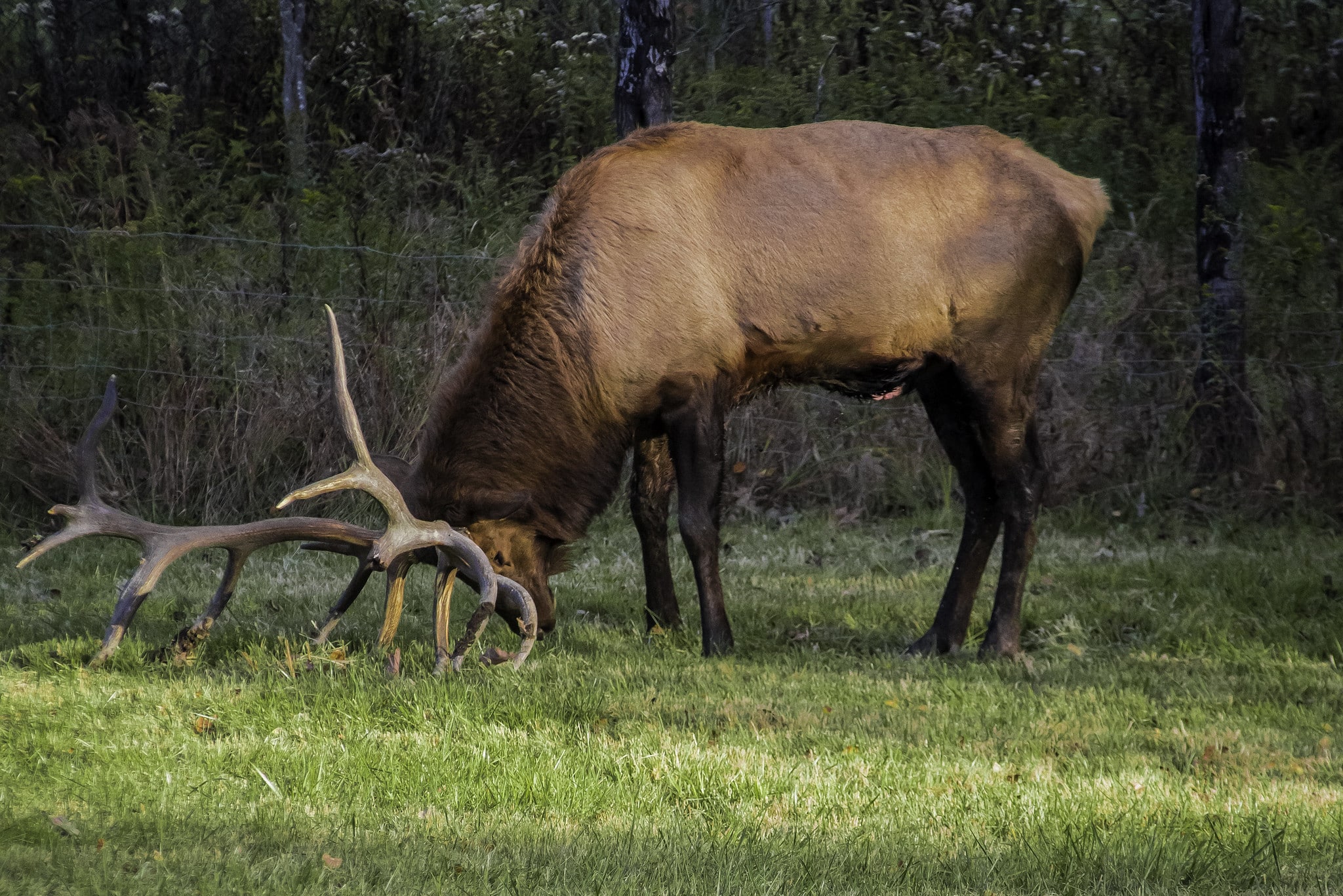

Converting wildlife images helps adapt them for specific tasks. The same photo from a wildlife photoshoot may need different formats depending on whether it is edited, published, or archived. Sometimes you may start with RAW images and convert them into lighter formats for sharing. Conversion is always about balancing quality and usability.
To Reduce File Size
Wildlife photos are often high-resolution. Converting PNG or TIFF into JPEG or WebP helps reduce file size without noticeable quality loss.
For Better Compatibility
Some platforms do not support newer file types. Converting images into widely supported formats ensures your photo file opens everywhere.
For Web Optimization
Choosing the right file format improves loading speed and SEO. WebP and optimized JPEG are common choices for web use.
For Editing or Archiving
Many photographers keep originals as RAW images and convert copies into smaller formats for distribution.
Best Practices and Common Mistakes
Even simple image conversions can cause problems if done carelessly. Wildlife images are particularly sensitive to over-compression and color changes. Following best practices helps protect image integrity while keeping files practical to use. Avoiding common mistakes will save you from having to redo work later.
Avoid Repeated Compression
Each time you re-save a JPEG, quality drops. Always convert from the original photo file.
Choose the Right Format for the Task
- Web use — JPEG or WebP
- Transparency — PNG
- Animation — GIF
- Archiving — Lossless formats
Do Not Over-Compress Wildlife Photos
Fur, feathers, foliage, and other fine details can easily be damaged by heavy compression.
Check Color Profiles
Some conversions may slightly alter colors. Always preview images after conversion.
Keep Originals Safe
Store original files separately and use converted images only for sharing or publishing.
Let’s Wrap It Up
Image format conversion is a core skill for anyone working with wildlife photography. It allows you to adapt images to different platforms while preserving quality. By understanding file types, choosing the right file format, and using the right file converter, you can protect your images and make them work everywhere. When done correctly, conversion ensures your wildlife photos always look their best.
Guest Author
January 27, 2026
This article was written by one of our incredible guest authors. If you're interested in writing for WDO Photography please contact WDO Photography. Guest authors are welcome to submit articles written for clients so long as WDO Photography has a chance to vet their products or services.




Read The Latest Photography Articles on the WDO Photography Blog

Why Your Wildlife Photos Are Not Sharp
Your wildlife photos are not sharp and you don’t know why. It might just be the atmosphere causing this distortion. Watch the video to fix it.
read more…

Written by Don Orkoskey
on April 1, 2026 at 4:48 pm

This Is Why Good Storytelling Makes People Love Your Photos
If you want people to pay more attention to your work then you need to understand how essential good storytelling is to photography.
read more…
Written by Don Orkoskey
on March 31, 2026 at 12:41 pm

The Beginner’s Guide to Shooting in Natural Light Without a Studio
Shooting in natural light can be tricky. The key is understanding how light behaves and learning to use that behavior rather than fight it.
read more…
Written by Guest Author
on March 20, 2026 at 9:38 am

Aperture Numbers Explained: How To Stop Making Little Mistakes
Are you ready to have aperture numbers explained in a way that you will actually understand and be able to use when taking photos?
read more…
Written by Don Orkoskey
on February 28, 2026 at 9:24 pm
Comments
0 comments